
I first wrote about this after getting smacked by what is, these days, an edge case IT problem: bad time sync, causing problems that looked like something else.
This was at the start of COVID. Our team was all now working remotely, and one of our first in-person syncs during Lockdown was to get together and present a demo to the sales team. Everything looked fine until security logins started failing in ways that did not make immediate sense.
The issue turned out to be time.
A surprising number of Windows machines were not actually synced the way everyone assumed they were. The machine clocks and the network time were out of alignment, and that mismatch was enough to break authentication in the demo setup.
We never fully proved the original root cause. But we did prove the fix.
Once we corrected the time sync and got the affected machines aligned to the right time source, the authentication issues cleared up.
That experience stuck with me because it is such a classic IT problem. Small cause. Weird symptoms. Real impact.
Time sync is not glamorous, but it quietly sits underneath authentication, certificate validation, logging, and incident timelines. When clocks drift, the symptoms rarely introduce themselves politely.
So this is a refreshed version of that original post, updated with better context and a little more scar tissue behind it.
Why Time Sync Still Matters
A lot of systems assume clocks are reasonably aligned.
When they are not, strange things happen:
- Kerberos authentication failures
- Certificate validation errors
- Security logs that do not line up
- Distributed systems behaving inconsistently
- Scheduled tasks are triggering at the wrong time
In Windows environments, authentication protocols rely on systems agreeing on what time it is. If the clock drifts too far from the authoritative source, authentication can fail even if credentials are correct.
That is why time problems often show up looking like login problems.
A Quick Sanity Check Before Changing Anything
Before diving into settings, it is worth checking whether Windows is already syncing correctly.
Open a Command Prompt and run:
w32tm /query /status
If Windows is syncing properly, you will see the current time source listed.
If the source shows Local CMOS Clock, the system is not syncing with any external time server.
That is usually a sign that something has gone wrong with time synchronization.
Configure Windows Time Sync (Control Panel Method)
The screenshots below walk through the classic Windows interface for configuring NTP time synchronization.
This workflow still works in Windows 10 and Windows 11 because it interacts with the same Windows Time service underneath.
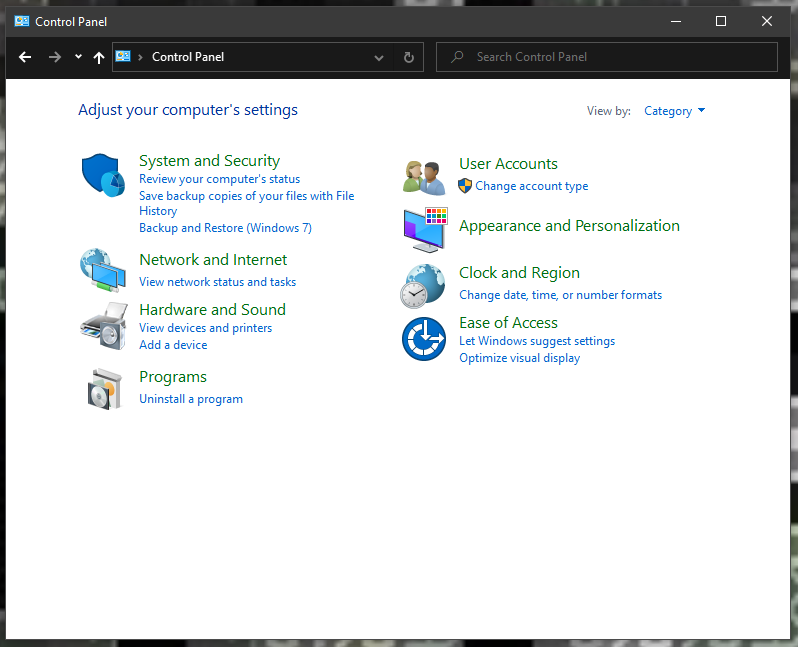
Step 1 — Open Control Panel
Start by opening Control Panel.
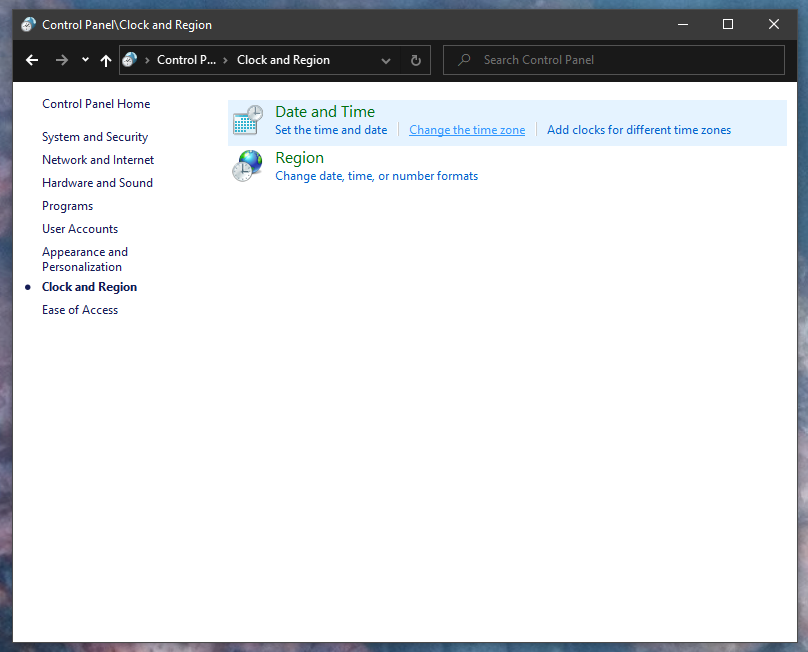
Step 2 — Open Clock and Region
Select Clock and Region.
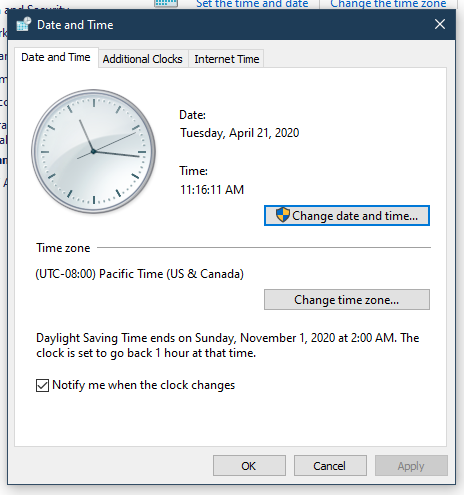
Step 3 — Open Date and Time
Click Set the time and date.
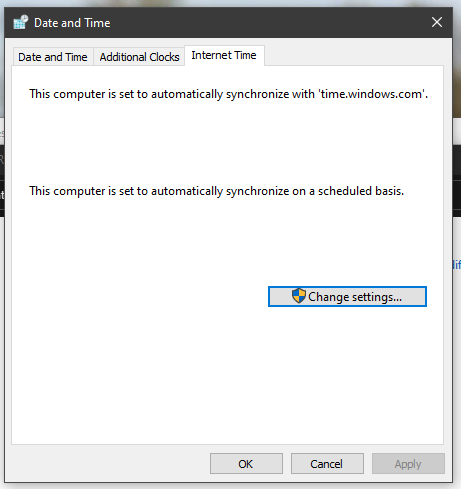
Step 4 — Open the Internet Time Tab
Select the Internet Time tab.
Step 5 — Open Internet Time Settings
Click Change settings.
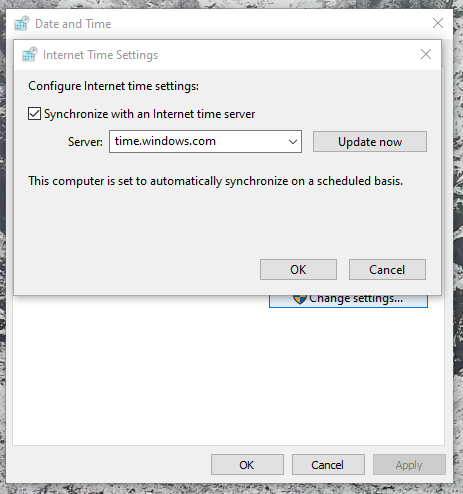
Step 6 — Enable Time Synchronization
Ensure Synchronize with an Internet time server is checked.
This setting tells Windows to periodically update the system clock using an NTP server.
Step 7 — Choose a Time Server
From the server dropdown list, select a time source.
Examples include:
- time.windows.com
- time.google.com
- time.nist.gov
- pool.ntp.org
These servers provide reliable public reference clocks.
Step 8 — Synchronize the Clock
Click Update now to trigger an immediate synchronization.
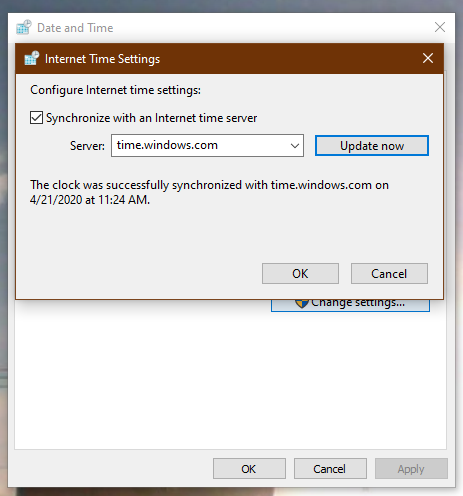
If the sync succeeds, Windows will update the system clock and display a confirmation.
Adding Additional Time Servers
The previous solution is great if you want to use the default time servers included in Windows. While the default time servers are, for the most part, reliable, there will be times when you may need or want to change them, such as if your current configuration causes your device to display the wrong time, you just prefer to use a different service, or your company uses a specific configuration.
The built-in server list is limited. If you want additional servers available in the dropdown menu, they can be added through the Windows Registry.
This is optional but useful if you regularly work with multiple NTP sources.
For easy configurations, I will include a lists of available free NTP servers at the end of this post.
Warning: This is a friendly reminder that editing the Registry is risky, and it can cause irreversible damage to your installation if you don’t do it correctly. It’s recommended to make a full backup of your PC before proceeding.
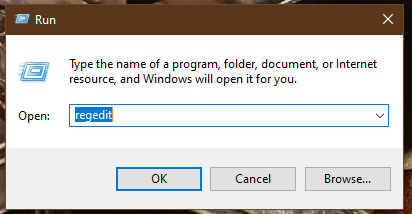
Step 1 — Open Registry Editor
Open the Run dialog and launch Registry Editor.
Step 2 — Navigate to the NTP Server List
HKEY_LOCAL_MACHINE\SOFTWARE\Microsoft\Windows\CurrentVersion\DateTime\Servers
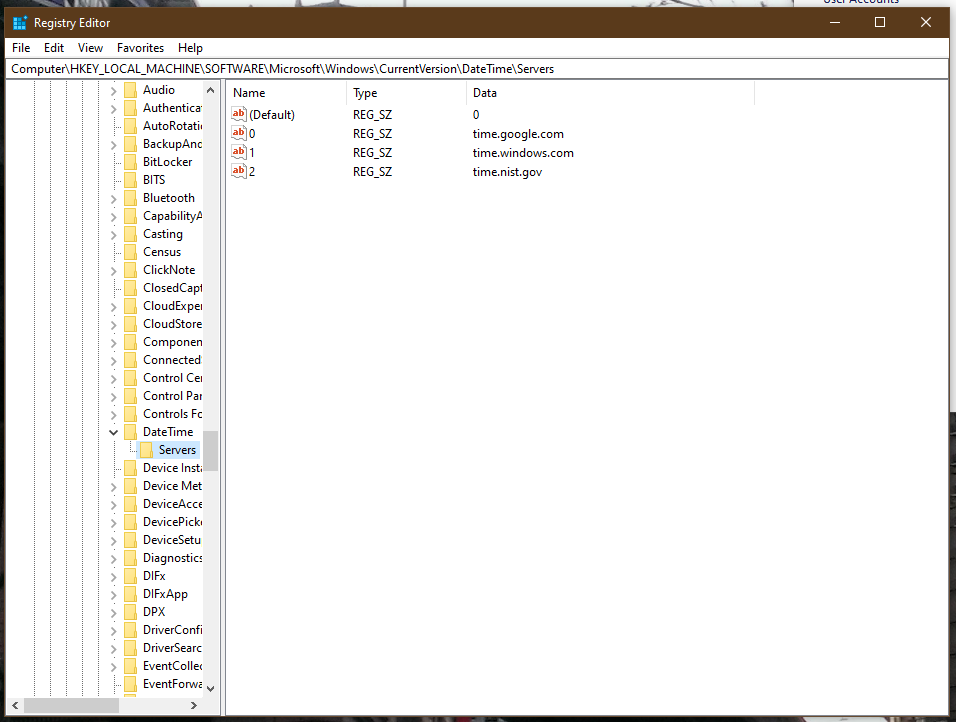
This location stores the list of servers used by the Internet Time dropdown.
Step 3 — Create a New Server Entry
Create a new String Value and name it using the next available number.
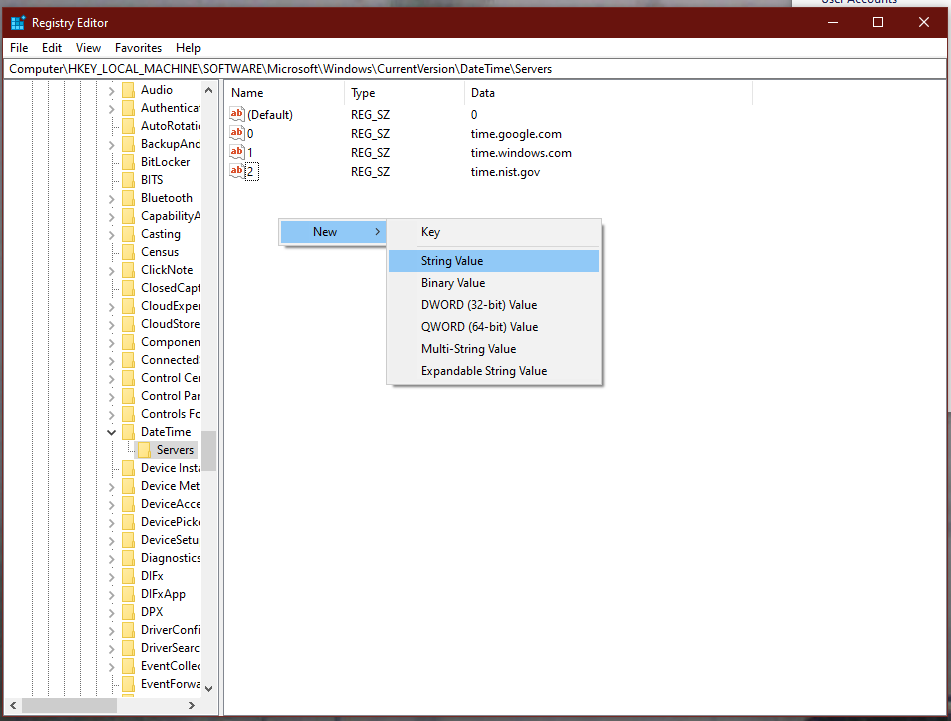
Step 4 — Enter the Server Address
Edit the value and enter the NTP server address.
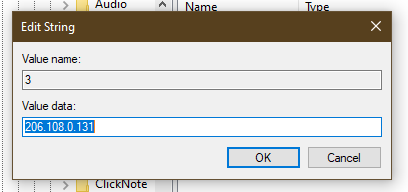
For example, if you want to use the Google Public NTP server, you can enter time.google.com. However, I will be using the TorIX NTP server based in Toronto, Canada, which has been in operation since 1997.
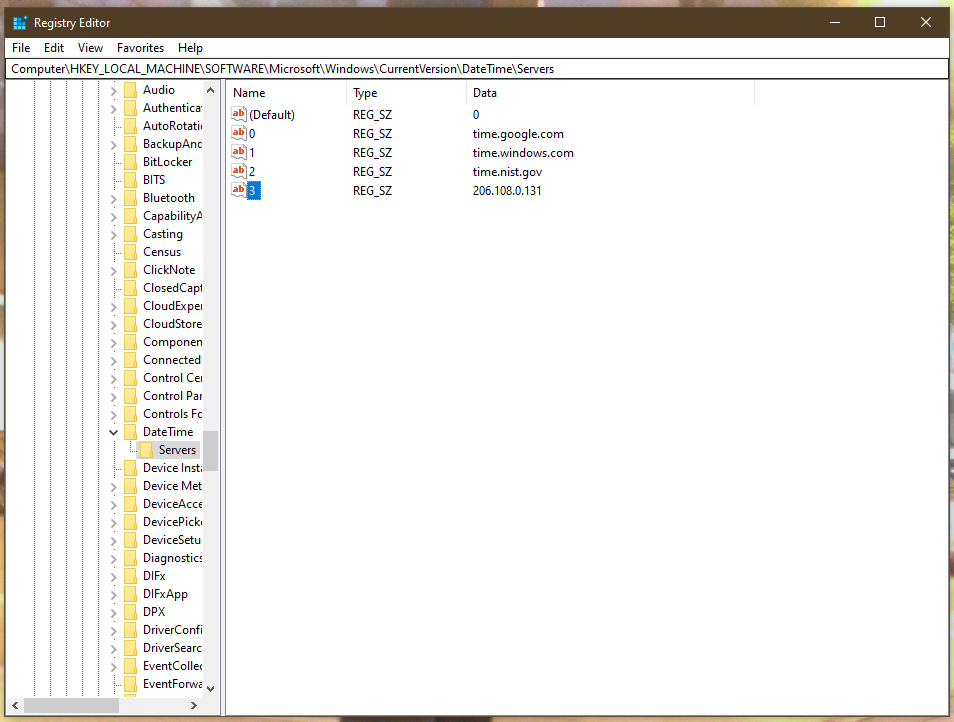
Step 5 — Verify the Server Appears
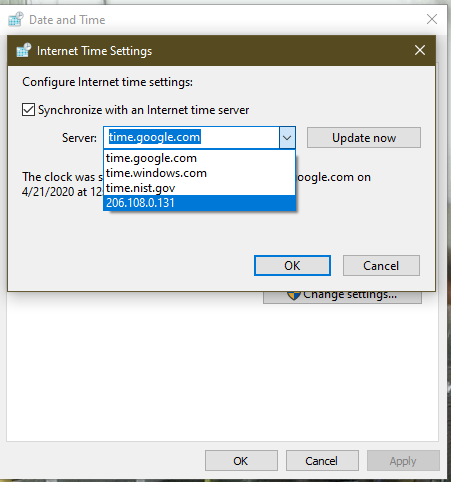
Return to the Internet Time settings window.
The new server should now appear in the dropdown list.
Common Windows Time Sync Problems
If synchronization fails, check these first:
- Firewall blocking UDP port 123
- Domain controllers overriding local configuration
- Virtual machine hypervisors controlling guest time
- Systems that stopped syncing and never recovered
These are the usual suspects when Windows starts drifting.
A Few Modern Reality Checks
The mechanics above still work today, but modern environments add a few wrinkles.
If your system is domain-joined, it normally syncs from the domain hierarchy, not directly from a public NTP server. In that case, the better troubleshooting question is whether the domain time source is healthy.
If your system is a virtual machine, the hypervisor may also be trying to manage time. That can lead to the sort of haunted-house behavior that wastes half a day and your remaining faith in “automatic.”
If your system participates in cloud or distributed workloads, time drift can create subtle issues across authentication, certificates, logs, and scheduled processes.
So yes, this is still a boring IT issue, but it still matters, because sometimes the fix really is just getting every machine to agree on what time it is.
List of Free NTP Servers
If your system is standalone and not domain-joined, these public time sources are useful reference points.
For most readers, I would start with one of these:
- TorIX
- ntp.torix.ca
- 206.108.0.131
- Google
- time.google.com
- time.google.com
- Microsoft
- time.windows.com
- time.windows.com
- Amazon Public Time Sync
- time.aws.com
- time.aws.com
- Amazon EC2 instances only
- 169.254.169.123
- 169.254.169.123
- Global pool
- pool.ntp.org
NTP Pool Project Servers by Region
The NTP Pool Project is useful because it gives you a regional pool instead of tying you to one specific box. That is often the better choice for general-purpose systems.
North America
Canada — ca.pool.ntp.org
Costa Rica — cr.pool.ntp.org
Greenland — gl.pool.ntp.org
Mexico — mx.pool.ntp.org
United States — us.pool.ntp.org
Europe
Andorra — ad.pool.ntp.org
Albania — al.pool.ntp.org
Austria — at.pool.ntp.org
Aland Islands — ax.pool.ntp.org
Bosnia and Herzegovina — ba.pool.ntp.org
Belgium — be.pool.ntp.org
Bulgaria — bg.pool.ntp.org
Belarus — by.pool.ntp.org
Switzerland — ch.pool.ntp.org
Czech Republic — cz.pool.ntp.org
Germany — de.pool.ntp.org
Denmark — dk.pool.ntp.org
Estonia — ee.pool.ntp.org
Spain — es.pool.ntp.org
Finland — fi.pool.ntp.org
Faroe Islands — fo.pool.ntp.org
France — fr.pool.ntp.org
Guernsey — gg.pool.ntp.org
Gibraltar — gi.pool.ntp.org
Greece — gr.pool.ntp.org
Croatia — hr.pool.ntp.org
Hungary — hu.pool.ntp.org
Ireland — ie.pool.ntp.org
Isle of Man — im.pool.ntp.org
Iceland — is.pool.ntp.org
Italy — it.pool.ntp.org
Jersey — je.pool.ntp.org
Liechtenstein — li.pool.ntp.org
Lithuania — lt.pool.ntp.org
Luxembourg — lu.pool.ntp.org
Latvia — lv.pool.ntp.org
Monaco — mc.pool.ntp.org
Moldova — md.pool.ntp.org
Montenegro — me.pool.ntp.org
North Macedonia — mk.pool.ntp.org
Malta — mt.pool.ntp.org
Netherlands — nl.pool.ntp.org
Norway — no.pool.ntp.org
Poland — pl.pool.ntp.org
Portugal — pt.pool.ntp.org
Romania — ro.pool.ntp.org
Serbia — rs.pool.ntp.org
Russia — ru.pool.ntp.org
Sweden — se.pool.ntp.org
Slovenia — si.pool.ntp.org
Svalbard and Jan Mayen — sj.pool.ntp.org
Slovakia — sk.pool.ntp.org
San Marino — sm.pool.ntp.org
Turkey — tr.pool.ntp.org
Ukraine — ua.pool.ntp.org
United Kingdom — uk.pool.ntp.org
Vatican City — va.pool.ntp.org
 Tech That MattRs
Leave a comment